
If you forget your password, you can reset it and create a new one at any time.
Follow the steps below to reset your password.
1. Access the Forgot Password Menu
a. On the Login page of the Paycloud Merchant Portal, click “Forgot your password?”
b. You will be redirected to the Reset Password page.
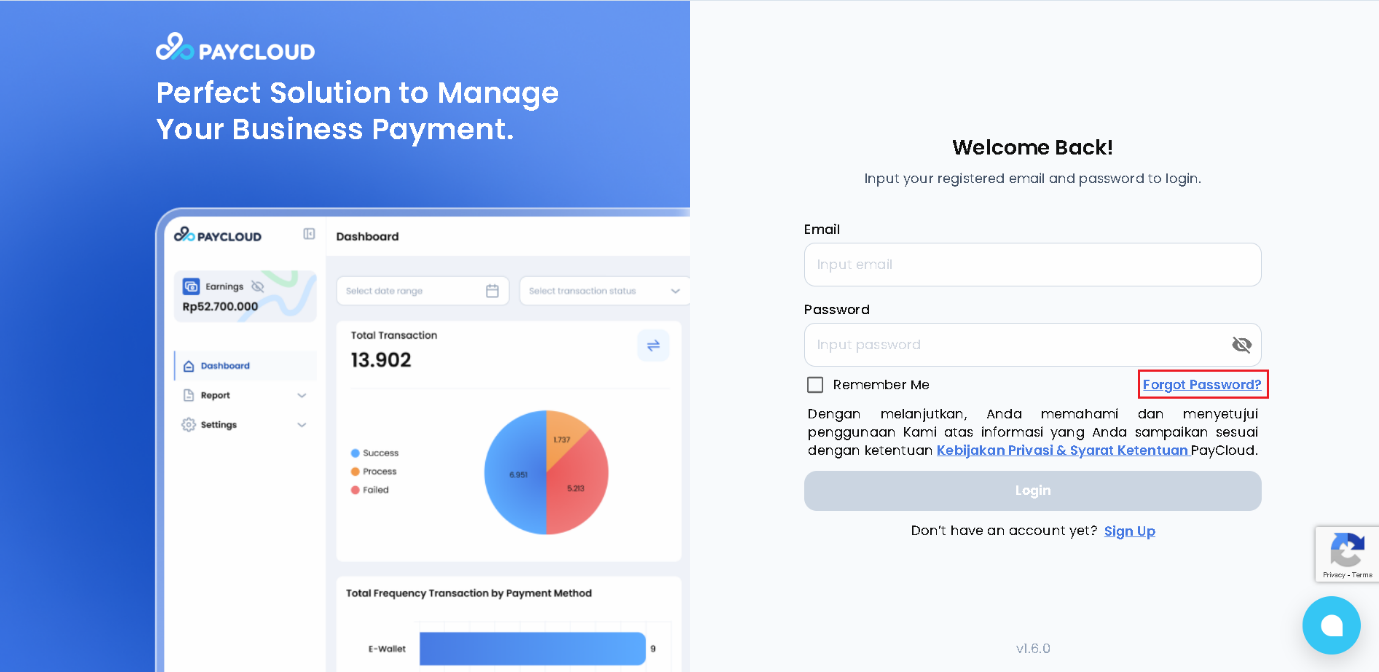
Login Page
2. Submit Password Reset Request
a. Enter your registered email address in the Email field.
b. Click Send Link.
A confirmation message will appear indicating that a password reset link has been sent to your email. Please check both your Inbox and Spam folders.
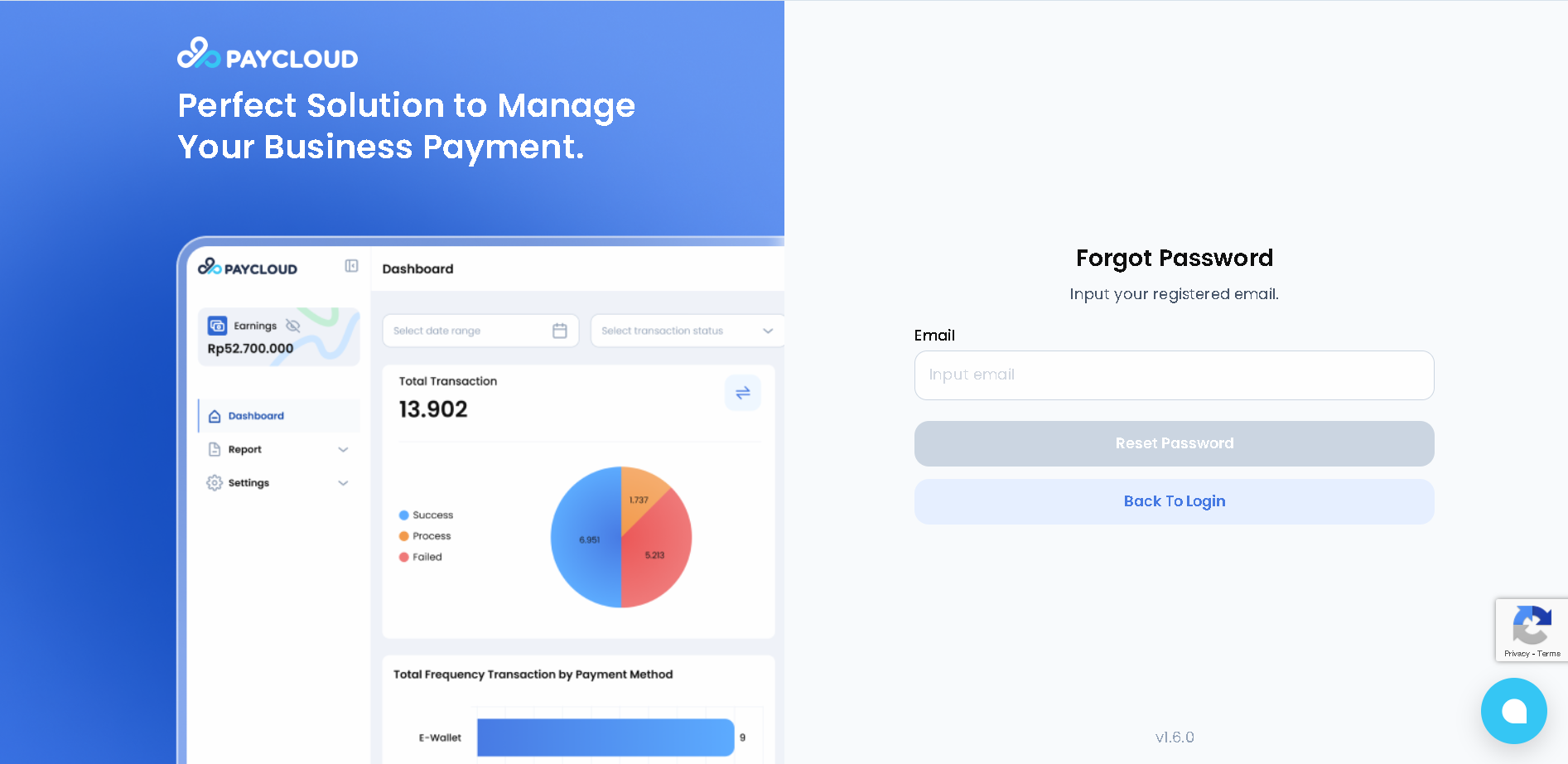
Reset Password Page - Input Registered Email
3. Open the Reset Password Email
a. Go to your email account.
b. Open the auto-generated email from Paycloud titled Password Reset Request.
c. Click the button or link provided to reset your password.
4. Create a New Password
After clicking the email link, you will be redirected to the Paycloud Change Password page.
a. Enter your new password in the New Password field.
b. Re-enter the same password in the Confirm New Password field.
c. Click Change My Password.
If the password reset is successful, you will be redirected to the Paycloud Login page.
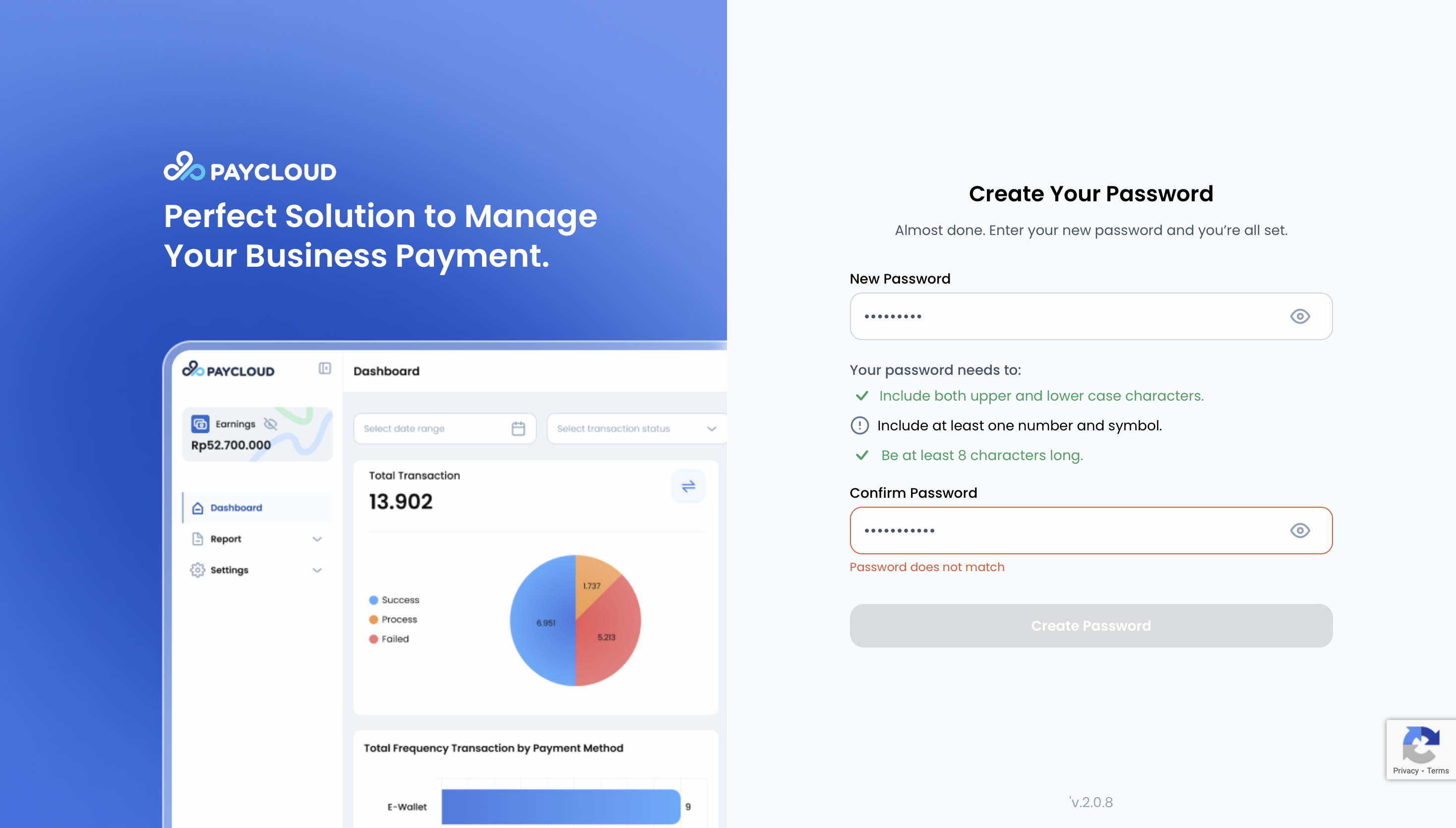
Create New Password
Notes:
- The password reset link is valid for one day or 24 hours. If the link has expired, please repeat the reset process.
- Your new password must be different from any previously used password.
- Ensure that only your registered merchant email is used for the reset process.
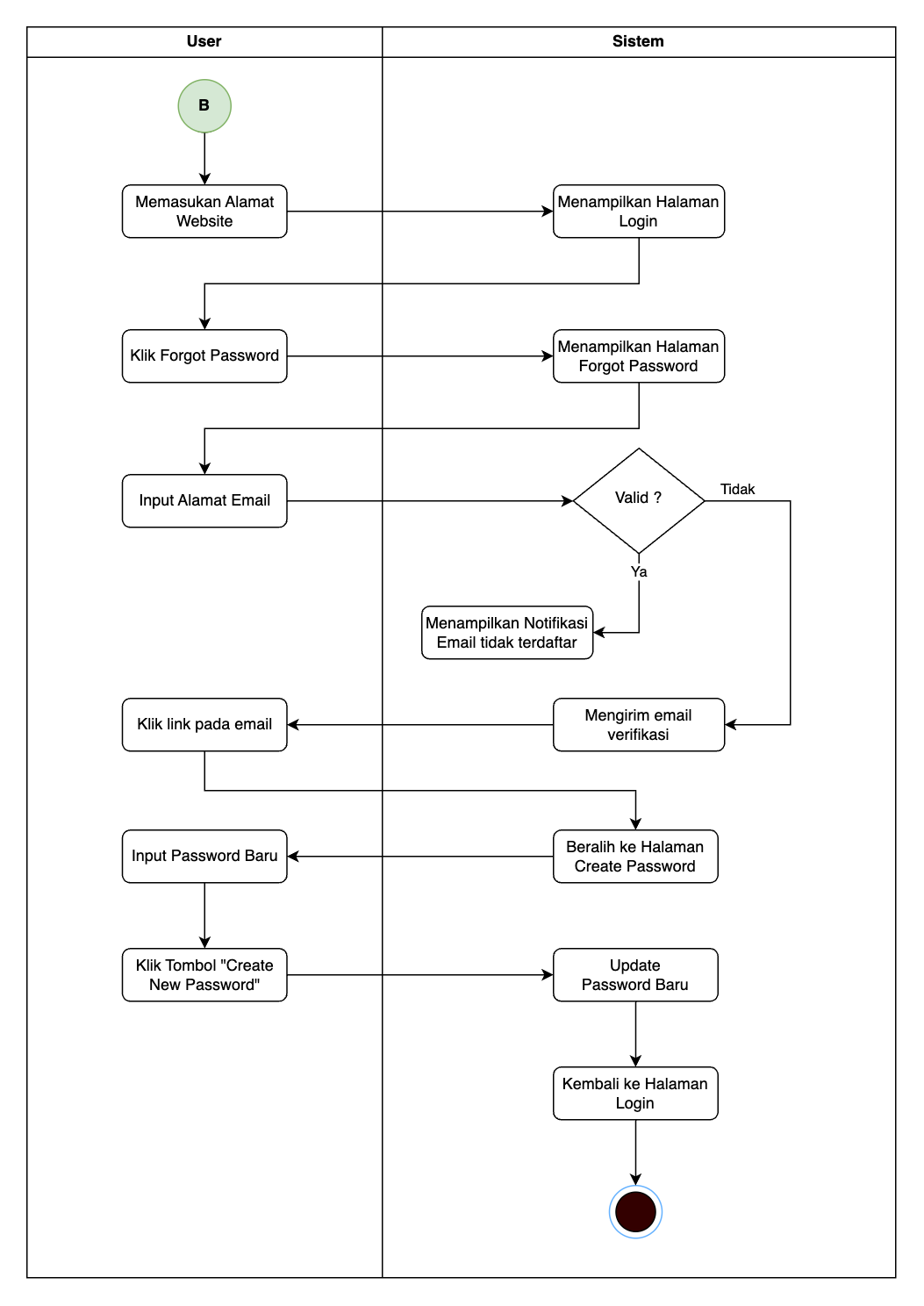
Activity Diagram Forgot Password